
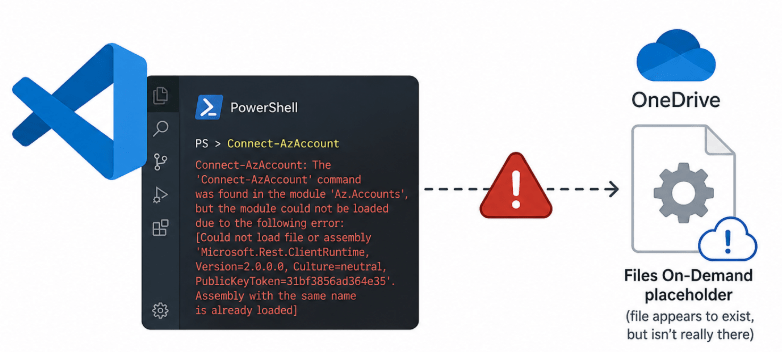
Connect-AzAccount had worked without a single issue. No code changes. No deliberate configuration changes. Until, one day, it stopped, and the error pointed in the wrong direction.
Connect-AzAccount: The 'Connect-AzAccount' command was found in the module 'Az.Accounts',
but the module could not be loaded due to the following error:
[Could not load file or assembly 'Microsoft.Rest.ClientRuntime, Version=2.0.0.0,
Culture=neutral, PublicKeyToken=31bf3856ad364e35'. Assembly with the same name is already loaded]
The error says “assembly with the same name is already loaded”. That phrase sends most people down a module-conflict path: hunting for duplicate versions, reinstalling, wiping caches. None of it works. The cause is not a module conflict at all. It is a file that appears to exist on disk but is physically nonexistent.
This article reconstructs the failure chain, explains why common fixes fail, and gives a resolution.
The Error Looks Like a Module Conflict. It Is Not.
The standard read of “assembly with the same name is already loaded” is that two versions of the same DLL are installed. PowerShell has already loaded one before encountering the other. That diagnosis applies in many scenarios: Azure DevOps pipelines, mixed Az and Microsoft Graph PowerShell imports, side-by-side module installs.
This scenario is different. The key facts:
- Only one version of Az.Accounts is installed.
- The error appears only in the VS Code PowerShell extension terminal. Not in a standalone
pwshsession. - Reinstalling the Az module makes no difference. Reinstalling the PowerShell extension makes no difference.
- A clean
pwsh -NoProfilesession runsConnect-AzAccountwithout any error.
If reinstalling fixes nothing and a fresh process works fine, the module itself is not the problem. Something in the environment is corrupting the .NET AppDomain before the module can fully load.
What a ReparsePoint DLL Actually Means
The diagnostic pivot is a single command:
$p = (Get-Module -ListAvailable Az.Accounts | Select-Object -First 1 -ExpandProperty Path | Split-Path)
(Get-Item "$p\Microsoft.Rest.ClientRuntime.dll").Attributes
On an affected machine, the output is:
Archive, ReparsePointReparsePoint is the attribute Windows assigns to OneDrive Files On-Demand placeholders. The file appears in Explorer and in PowerShell directory listings. It has a size. It has a path. But the actual bytes live in OneDrive’s cloud storage. They are only streamed down when something tries to read the file.
A normal, locally hydrated DLL shows only Archive. No ReparsePoint.
OneDrive Files On-Demand is enabled by default in most Windows configurations. Microsoft’s own about_PSModulePath documentation states that OneDrive can change the location of the Documents folder. When Documents is redirected to OneDrive, every module installed under Documents\PowerShell\Modules becomes a cloud placeholder the moment OneDrive decides to free up local disk space. In corporate environments with folder redirection enforced by policy, users cannot prevent this.
Why the .NET Assembly Loader Breaks on Cloud Placeholders
The .NET AppDomain assembly loader does not understand cloud-placeholder files. When it tries to load Microsoft.Rest.ClientRuntime.dll from a ReparsePoint path, the sequence is:
| Step | What happens |
|---|---|
| 1 | Loader opens a file handle. OneDrive intercepts the request. |
| 2 | OneDrive begins streaming the DLL bytes from the cloud. |
| 3 | If the download is slow, interrupted, or incomplete, the read fails mid-stream. |
| 4 | The partial load still registers the assembly identity in the AppDomain. |
| 5 | Every subsequent attempt sees “assembly with the same name is already loaded” and fails immediately. |
Step 4 is the trap. The AppDomain records the assembly name as claimed even though the load never completed. Once that entry exists, no retry can succeed in that process. The broken state is permanent for the lifetime of the session.
The PowerShell extension for VS Code runs a persistent host process managed by PowerShell Editor Services (PSES). That process accumulates the broken AppDomain state across every terminal session until VS Code itself is fully restarted. A standalone pwsh -NoProfile starts a clean process with an empty AppDomain, which is why it works.
This behaviour is not a bug in the Az module or in the PowerShell extension. It reflects a constraint of .NET’s AppDomain model: once an assembly identity is registered, it cannot be unloaded, even if the load failed.
The Failure Chain
OneDrive sync runs
  -> DLLs in Documents\PowerShell\Modules marked as cloud-only placeholders
        |
VS Code opens
  -> PowerShell extension launches a persistent host process via PSES
        |
A .ps1 file referencing Az commands is opened in the editor
  -> Extension triggers IntelliSense analysis in the background
        |
.NET attempts to load Microsoft.Rest.ClientRuntime.dll
  -> OneDrive intercepts and begins streaming from cloud
        |
Download stalls or fails mid-read
  -> Partial load registers assembly identity in AppDomain
        |
Connect-AzAccount called
  -> Loader sees "assembly with the same name is already loaded"
        |
Error is permanent for the life of the PSES host process
The trigger is often not a deliberate Import-Module call. Opening a .ps1 file in VS Code causes the PowerShell extension to run IntelliSense analysis in the background. That analysis can trigger a partial assembly load before the user executes a single command.
Why Common Fixes Do Not Work
| Fix attempted | Why it fails |
|---|---|
| Reinstall the Az module | Reinstalls to the same OneDrive-synced path. DLLs become cloud placeholders again within hours. |
| Remove duplicate module versions | Duplicates may exist and removing them is a valid step. It does not solve the problem because the root cause is the OneDrive placeholder, not the version conflict. |
| Reinstall the PowerShell extension | The extension is not the source. The failure happens inside the .NET runtime. |
Run Import-Module Az.Accounts manually |
The AppDomain already has the broken partial load registered. The retry fails immediately. |
Remove-Module Az.Accounts then re-import |
Removes the PowerShell module object but cannot unload an assembly already registered in the AppDomain. |
| Restart the terminal tab | The PowerShell extension reuses the same persistent PSES host. The AppDomain state survives. |
The only escape from the broken state is a full VS Code restart, which terminates the PSES host and starts a clean process. Without moving the modules, the failure recurs the next time the extension opens a .ps1 file.
The Fix: Move Modules Away from the OneDrive Path
The Az modules must be moved to a directory that OneDrive does not manage.
-
Create a local modules directory
PowerShell
New-Item -ItemType Directory -Path "C:\LocalPSModules" -ForceChoose any path outside the OneDrive sync scope.
-
Download Az to the local path using Save-Module
Install-Modulewithout a-Scope AllUsersflag writes to the current user profile path, which maps toDocuments\PowerShell\Modules. UseSave-Moduleinstead:PowerShellSave-Module Az -Repository PSGallery -Path "C:\LocalPSModules" -Force -
Verify the DLLs are physically present on disk
PowerShell
$dll = "C:\LocalPSModules\Az.Accounts\\Microsoft.Rest.ClientRuntime.dll" (Get-Item $dll).Attributes # Expected: Archive (no ReparsePoint) -
Add the local path to PSModulePath persistently
This writes the local path into the User-scoped environment variable. It is not sufficient on its own because PowerShell 7 reconstructs
PSModulePathat startup by combining the User-scoped value with the PS7-specific paths, which includes the Documents folder. Step 5 handles that.PowerShell$localModules = "C:\LocalPSModules" $current = [System.Environment]::GetEnvironmentVariable("PSModulePath", "User") if ($current -notlike "*$localModules*") { [System.Environment]::SetEnvironmentVariable("PSModulePath", "$localModules;$current", "User") } -
Reorder PSModulePath at session start via $PROFILE
PowerShell 7 prepends its own paths, including the Documents folder, at every startup. A profile entry must reorder the result each session so the local path wins. Create the profile file first if it does not exist, then add the snippet:
Create profile file if it does not existNew-Item -ItemType File -Path $PROFILE -ForceOpen
$PROFILEand add these lines:PowerShell — $PROFILE (Microsoft.PowerShell_profile.ps1)$localModules = "C:\LocalPSModules" $env:PSModulePath = ($env:PSModulePath -split ";" | Where-Object { $_ -ne $localModules }) -join ";" $env:PSModulePath = "$localModules;$env:PSModulePath" -
Restart VS Code
A full restart terminates the PSES host. The new process picks up the updated profile and loads Az from the local path.
-
Verify the fix
PowerShell
# Confirm local path is first
$env:PSModulePath -split ';' | Select-Object -First 3

# Confirm Az.Accounts loads from the local path
Import-Module Az.Accounts
(Get-Module Az.Accounts).Path

# Should succeed without error
Connect-AzAccount
This Affects More Than the Az Module
The same failure pattern occurs with any PowerShell module containing .NET assemblies when all three conditions are met:
- The module is installed under a OneDrive-synced directory with Files On-Demand enabled.
- OneDrive has marked some or all DLLs as cloud-only placeholders.
- A session-persistent host process triggers a partial assembly load before the file is fully hydrated.
The pattern has been reported for PnP.PowerShell, Microsoft.Graph, and AzureADPreview under the same conditions. The ReparsePoint attribute check is the fastest root-cause confirmation across all of them.
Quick Takeaway
- The “assembly with the same name is already loaded” error in this scenario is not a version conflict. It is a failed .NET assembly load from a OneDrive cloud-placeholder file marked as
ReparsePoint. - The .NET runtime cannot reliably load assemblies from OneDrive Files On-Demand placeholders.
- A fresh
pwsh -NoProfileworks because it starts with a clean AppDomain. The PowerShell extension’s persistent PSES host does not. - Reinstalling the Az module to the same path fixes nothing. The DLLs become placeholders again.
- The permanent fix: move modules to a non-synced local path and ensure it loads first in
PSModulePath.
