
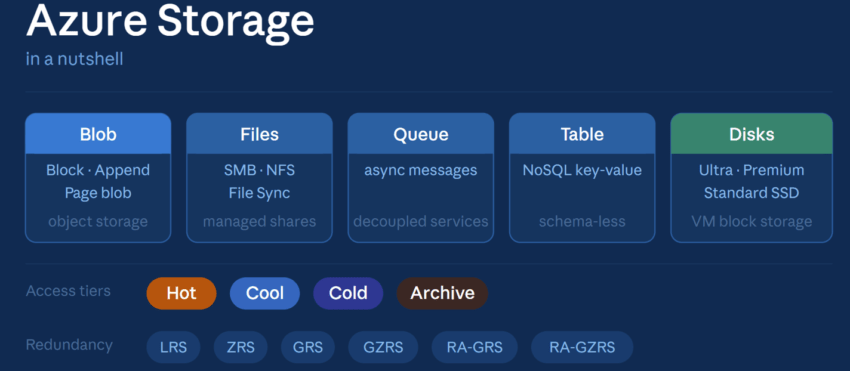
Storage accounts, blobs, files, queues, tables, managed disks, redundancy, and migration tools explained.
The Storage Account
A Storage Account is the top-level namespace for all Azure Storage services. It is the container you create first; everything else lives inside it.
A single account can store blobs, files, queues, and tables simultaneously. You control performance, redundancy, and access at the account level.
Account Types
| Type | Status | Services included | Best for |
| GPv2 (General Purpose v2) | ✓ Recommended | Blob, File, Queue, Table, Disk, Data Lake Gen2 | Default choice for everything |
| BlockBlobStorage | ✓ Active | Block & Append Blob only | Premium SSD – AI/ML, media, high-throughput |
| FileStorage | ✓ Active | File shares only | Premium SSD file shares, low-latency apps |
| GPv1 | ⚠ Retiring Oct 2026 | Blob, File, Queue, Table | Migrate to GPv2 now |
| BlobStorage | Legacy | Block & Append Blob only | Superseded by GPv2 –no new accounts |
⚠ GPv1 retires 13 October 2026
New GPv1 accounts cannot be created starting Q1 2026. If you do not upgrade, Microsoft will auto-migrate your accounts. This may result in higher billing costs without notice. The upgrade is in place (no data movement, same endpoints), but GPv2 uses more granular transaction pricing, which can increase costs for high read/write workloads. Use the Azure Pricing Calculator to estimate the impact before upgrading.
Service Endpoints
Every Storage Account gets a unique set of URLs, one per service. The account name becomes part of the hostname, which is why names must be globally unique across all Azure.
Endpoint format per service:
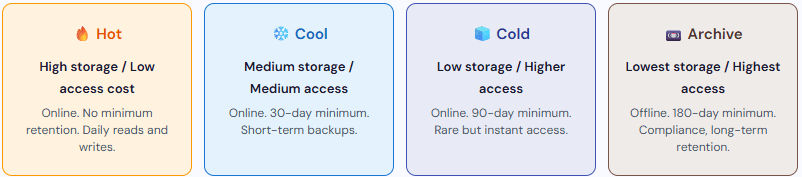
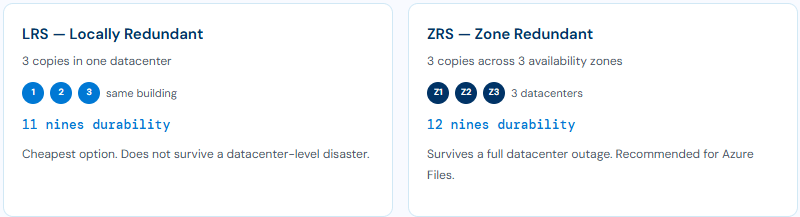
Blob Storage https:// 💡 Custom domains You can map your own domain (e.g., storage.contoso.com) to your Blob endpoint using a CNAME record. Custom domains are supported for Blob only – not File, Queue, or Table endpoints. You choose the performance tier when you create the account. You cannot change it afterward. ⚠ Performance tier is fixed at creation There is no in-place upgrade path. If you chose the wrong tier, you must: (1) create a new account with the correct performance type, (2) copy data using e.g., AzCopy, (3) update your app connection strings, and delete the old account. 💡 What you can change after creation Within a Standard (GPv2) account, you can change the access tier (Hot/Cool at account level, Archive at blob level) at any time – that is separate from the performance setting. Premium accounts have no access tiers at all; they are always optimized for speed. 💡 IOPS explained IOPS = Input/Output Operations Per Second. The higher the number, the more read/write operations per second the storage can handle. Premium SSD accounts have higher IOPS than Standard; critical for databases and latency-sensitive applications. Blob Storage is Azure’s object store for unstructured data: images, videos, backups, logs, and ML datasets. If you do not know the structure of your data ahead of time, it probably belongs here. Blob hierarchy: Storage Account └── Container (like a folder – you create as many as you need) ├── Block Blob → files, images, videos, backups ├── Append Blob → log files, streaming data (append-only) └── Page Blob → VM disk images (.vhd files) Azure lets you assign each blob to a tier. You pay more to store data in hot tiers but less to access it. A fifth option, Smart tier, is currently in Preview. It automatically moves blobs between Hot, Cool, and Cold based on access patterns, but does not support Archive tier or premium accounts. ⚠ Archive is offline Data in the Archive cannot be read immediately. You must first rehydrate it – move it to Hot, Cool, or Cold. Standard rehydration takes up to 15 hours. High-priority rehydration is faster but costs more. You do not have to manage tier transitions manually. Lifecycle Management rules automate the whole process based on age or last-access date. Example lifecycle policy Day 0 → Blob uploaded → Hot (default) Day 30 → 30 days since upload → Cool (auto) Day 90 → 90 days since upload → Cold (auto) Day 180 → 180 days since upload → Archive (auto) Day 365 → 1 year since upload → DELETE (auto) Queue Storage is a simple messaging service for passing messages between application components. 💡 Queue Storage vs Service Bus Queue Storage is simple and cheap – ideal for high-volume, basic queuing. Azure Service Bus is richer: it supports message sessions, dead-letter queues, transactions, and ordering guarantees. For enterprise workflows, use Service Bus. For simple async decoupling, Queue Storage is usually enough. Table Storage is a NoSQL key-value store for structured, non-relational data. It stores data in rows called entities, grouped into tables, without a fixed schema. 💡 Table Storage vs Cosmos DB Table API Azure Cosmos DB offers a Table API that is wire-compatible with Table Storage but adds global distribution, sub-10ms latency, and automatic scaling. If you outgrow Table Storage, migrating to Cosmos DB Table API requires no code changes. Azure Files is a fully managed cloud file share. Like a network drive you mount on Windows, Linux, or macOS, with no server to maintain. 💡 One share, one protocol A single file share uses either SMB or NFS – not both simultaneously. The endpoint is always: account.file.core.windows.net New File Shares resource (Preview in 2025) Azure is introducing File Shares (Microsoft.FileShares) as a top-level Azure resource. It deploys directly in a Resource Group, like a VM or a disk, without needing a parent Storage Account. This simplifies access control and billing for standalone file shares. File Sync keeps your on-premises Windows Server in sync with Azure Files. The local server acts as a fast cache. Frequently accessed files stay local. Rarely used files are automatically tiered to the cloud, freeing up local disk space. Managed Disks are block-level storage volumes used as the disks for Azure Virtual Machines. Azure handles all storage account management for you. You just pick a disk type and size. Every Azure VM has at least one OS disk. Most also have a temporary disk (non-persistent, for swap/page files) and optionally one or more data disks. All persistent disks are Managed Disks. Backups, archives, non-critical workloads. As OS disk: retiring 8 Sep 2028 – migrate to Standard SSD or Premium SSD. ⚠Standard HDD as OS disk – retiring 8 September 2028 Standard HDD is still fully supported as a data disk on all Azure VMs today. Yet, using a Standard HDD as an OS disk is being retired on 8 September 2028. Microsoft’s guidance: stop creating new VMs with Standard HDD OS disks now and migrate existing ones to Standard SSD or Premium SSD. Data disks are not affected by this retirement. Azure always stores at least 3 copies of your data. The question is where those copies live. More geographic spread means higher durability and higher cost. 💡 Durability ≠ Availability The “nines” figures measure durability – the probability that your data is never permanently lost. They do not describe availability (uptime). A storage account can be temporarily unreachable even with 16-nines durability. Check the Azure SLA pages for uptime guarantees. AzCopy is a command-line tool for moving data to and from Azure Storage. It runs on Windows, Linux, and macOS with no installer. Authentication uses Microsoft Entra ID or a SAS token. RBAC roles needed Assign the right role before running AzCopy: Storage Blob Data Reader to download; Storage Blob Data Contributor to upload or delete. Storage Explorer is a free desktop application (Windows, macOS, Linux) for visually managing Storage Accounts. You can browse containers, upload and download files, change access tiers, create snapshots, and manage SAS tokens. All without writing any commands. It is also available as a built-in tab in the Azure Portal (Storage Browser). Moving to Azure has two parts: migrating the workload and migrating the data. Azure provides dedicated tools for both. Azure Migrate is the central hub for discovering, assessing, and moving on-premises workloads to Azure. The process follows three phases: 1: DISCOVER: Find what resources you have, like servers, VMs, DBs, Apps, and dependencies 2: ASSESS: Check readiness and estimate costs. 3: MIGRATE: Move to Azure When your internet connection is too slow, too expensive, or unavailable for large data transfers, Azure ships you a physical rugged device. You copy your data locally, return the device, and Microsoft loads it into your storage account. No bandwidth consumed. 1. ORDER In portal → 2. CONNECT Configure in portal → 3. COPY Data via SMB or NFS → 4. RETURN Device via courier → 5. UPLOAD Microsoft loads data
Azure Files https://
Queue Storage https://
Table Storage https://
Data Lake Storage Gen2 https://Performance Tiers: Standard vs Premium
Standard (HDD) Premium (SSD) Storage media Magnetic hard disk drives Solid-state drives Latency Higher (milliseconds) Very low (sub-millisecond) IOPS Standard High Access tiers (Hot/Cool/Archive) ✅ Supported on GPv2 ❌ Not available – always high-performance Cost Lower Higher Best for Backups, archives, batch jobs Databases, AI/ML, interactive apps Azure Blob Storage
Type Access pattern Max size Typical use Block Blob Sequential read/write ~190.7 TiB Files, images, video, backups Append Blob Append-only ~195 GiB Log files, event streams Page Blob Random read/write 8 TiB VHD disks for virtual machines Blob Access Tiers
Lifecycle Management
Queue Storage
Property Value Max message size 64 KB Max time-to-live (TTL) 7 days (default); can be set to any positive value, or -1 for messages that never expire Max messages per queue Unlimited (constrained by account storage limit) Endpoint account.queue.core.windows.net Access REST API, Azure SDK, Azure Portal, Storage Explorer
Table StorageProperty Value Max entity size 1 MB Max properties per entity 255 (including PartitionKey, RowKey, Timestamp) Max table size Unlimited (constrained by account limit) Query key PartitionKey + RowKey (fast); other properties (slower, full scan) Endpoint account.table.core.windows.net Azure Files & File Sync
Protocol OS Support How do you mount it SMB (Server Message Block) Windows, Linux, macOS Drive letter, e.g., Z:\ NFS (Network File System) Linux, macOS Mount path, e.g., /mnt/share Azure File Sync
Azure Managed Disks
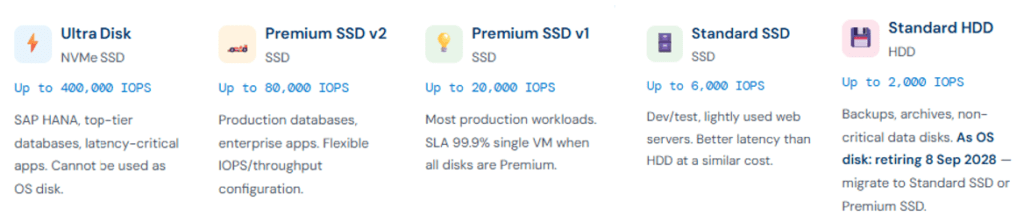
Disk Type Media Max IOPS Use case VM disk? Ultra Disk NVMe SSD 400,000 SAP HANA, mission-critical DB Data only ❌ OS Premium SSD v2 SSD 80,000 Production databases, enterprise apps Data only ❌ OS Premium SSD v1 SSD 20,000 Most production workloads ✅ OS + Data Standard SSD SSD 6,000 Dev/test, web servers ✅ OS + Data Standard HDD HDD 2,000 Backups, archives, non-critical data ⚠ Data disk ✅ | OS disk retiring Sep 2028 Redundancy: Protecting Your Data
Primary Region Options
Adding a Secondary Region
Type Primary Secondary Read secondary without failover? Durability GRS LRS Paired region ❌ 16 nines GZRS ZRS Paired region ❌ 16 nines RA-GRS LRS Paired region ✅ 16 nines RA-GZRS ZRS Paired region ✅ 16 nines AzCopy & Storage Explorer
AzCopy
Azure Storage Explorer
Feature AzCopy Storage Explorer Interface Command line Graphical (desktop + portal) Best for Scripts, automation, large transfers Ad-hoc browsing, small ops Supports Blob, File, Table, Queue Blob, File, Table, Queue, Data Lake Authentication Entra ID, SAS, storage key Entra ID, SAS, storage key Installation Single binary, no installer Desktop app or Portal tab Azure Migrate & Data Box
Azure Migrate
Tool Migrates Discovery & Assessment VMware, Hyper-V, physical servers, SQL Server, web apps Migration & Modernization VMs from VMware, Hyper-V, AWS, GCP Azure Database Migration Service SQL Server, MySQL, PostgreSQL → Azure SQL App Service Migration Assistant .NET and PHP web apps → Azure App Service Azure Data Box Large data volumes – offline physical device Azure Data Box
Product Capacity Use case Data Box Disk Up to 35 TB Small migrations, multiple SSD disks sent simultaneously Data Box Up to 80 TB Standard data migration Data Box Heavy Up to 1 PB Petabyte-scale migrations Reference
Scenario Tool Store images, videos, backups, log files Blob Storage VM disk files (.vhd) Page Blob or Managed Disk Append-only event stream/log Append Blob Pass messages between app components Queue Storage Structured, schema-less NoSQL data Table Storage Shared network drive for multiple VMs Azure Files On-premises server synced to the cloud Azure File Sync VM disk – maximum IOPS (DB, SAP HANA) Ultra Disk VM disk – standard production workload Premium SSD v1 VM disk – dev/test, budget Standard SSD or Standard HDD Data used daily Hot access tier Backups accessed a few times per month Cool access tier Rarely touched, but instant access is needed Cold access tier Long-term archive, compliance retention Archive access tier Copy data via CLI / automation scripts AzCopy Browse storage visually Storage Explorer Migrate VMs / databases to Azure Azure Migrate Move terabytes without using internet bandwidth Azure Data Box 